


All Recovery
4.353.00 Reviews
App Specs
- Version
- 1.2.70
- Updated On
- License
- Free
- Downloads
- 500,000+
- Developer
- VY Technology Services
- Categories
- Business
- Platform
- Android
Screenshots
 Analysis by AppCompare
I usually turn to recovery tools after the worst moment has already happened: a photo disappears, a document is gone, and the trash folder offers no obvious way back. That is the situation All Recovery is meant to help with. My practical advice is to treat it as a careful first attempt, not a guarantee. The sooner you stop using the phone for unnecessary downloads, recordings, and edits, the better your chances may be of finding something useful.
Before you scan, make the recovery attempt count
When I notice a missing file, I first check the places where it may still exist: the device’s recently deleted folder, a messaging conversation, or the cloud account I already use. That quick check can save time and avoids scanning for a file that is still available elsewhere. If those routes come up empty, a recovery app becomes a reasonable next step.
For a realistic example, imagine deleting a set of pictures while clearing space before a family visit. I would pause before taking more photos or downloading large files, open the recovery app, and focus on the relevant file type rather than immediately asking it to look for everything. That narrower approach makes the results easier to review and keeps the goal clear: find those pictures, confirm they are the right ones, and restore only what matters.
There is a useful trade-off here. A broad scan may turn up items you had forgotten about, but it can also make the result list harder to sort through. A targeted scan is more practical when I know whether I need a photo, video, or document. I would start narrowly and expand the search only if the missing item does not appear.
From scan results to a usable file
Once a scan finishes, the important work is not over. I look at the file names and use the preview option before restoring anything. Names can be vague, and a list of similar pictures is easy to misread when I am in a hurry. Previewing gives me a chance to check the actual content and avoid filling my phone with files I did not mean to bring back.
I would also handle recovered files deliberately. If the app restores something important, I would open it to make sure it is usable, then copy it to a second safe place I already trust. Recovery and backup solve different problems: one attempts to retrieve what went missing, while the other helps prevent the same scramble later. Keeping a separate copy is a sensible handoff from emergency recovery to everyday file care.
Cloud storage can be part of that handoff. The app’s description of cloud integration makes services such as Google Drive and iCloud relevant to the process, but I would still check the account and the file itself rather than assume every cloud copy is complete. A cloud account may hold an earlier version or a duplicate, so it is worth comparing what you find before deciding which copy to keep.
Worth Reading Before You Choose

EA SPORTS FC Mobile 26 Is a Bigger Football Game, but It Takes Time

Flipboard Shows What News Apps Must Do Beyond the Feed

Switching to Android Auto Means Rethinking Your Driving Routine

Google Calendar Makes a Crowded Week Easier to Manage

Ludo King Makes the Most of the Minutes Between Plans

Baby Panda World Brings Quick Play to Modern Phones, but Its Game Library Feels Busy
What’s the Deal with All Recovery?
First off, let's dive into what this app is all about. All Recovery is designed to help you recover lost files on your smartphone. Whether it’s photos, videos, or documents, this app claims to bring it all back from the digital abyss. I was intrigued by the promise, so I decided to give it a spin.
Getting Started: The Setup
Installing All Recovery was a breeze. It’s available on both Android and iOS, so no worries about compatibility. Once downloaded, the setup process was straightforward. The app greeted me with a clean interface, which is always a plus in my book. There’s nothing worse than feeling overwhelmed with buttons and options right out of the gate.
Exploring the Features
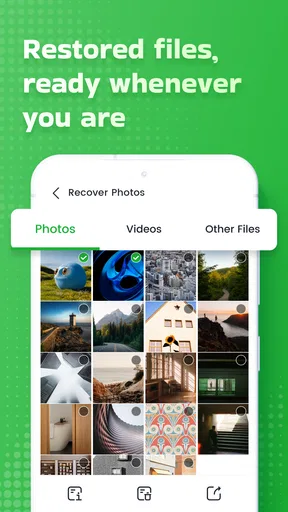
One of the first things I noticed was the variety of recovery options. You can choose to recover specific file types, or just go all out and scan for everything. I liked having this flexibility because sometimes you just need that one photo back, you know?
The app also supports cloud storage integration, which is pretty neat. You can connect your Google Drive or iCloud, making it easier to access files you might have thought were long gone. I tested this out with a few dummy files and, to my surprise, it worked smoothly.
Performance: Does It Actually Work?
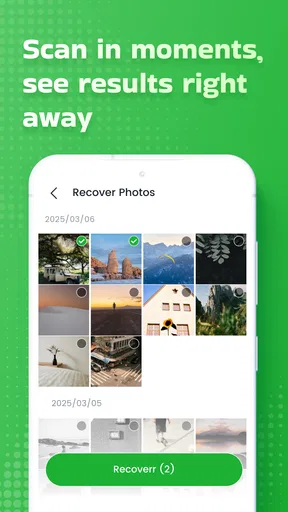
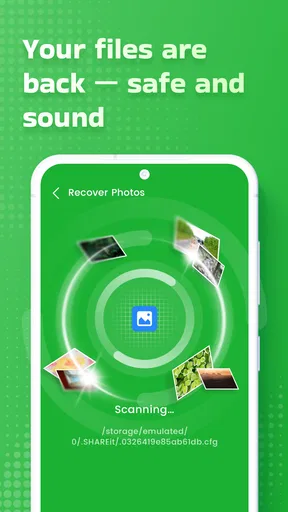
Alright, here’s where the rubber meets the road. I tried recovering some files I deliberately deleted just for testing. The scanning process took a bit of time, which is understandable given the task at hand. Once it was done, it displayed a list of recoverable files. Seeing the names of those files pop up felt like a mini victory.
Now, did it recover everything? Not exactly. While it did a decent job of retrieving photos and some documents, a few videos were missing. It’s worth noting that recovery success can depend on various factors like how long ago the files were deleted and whether they’ve been overwritten by new data.
The User Experience
The app’s user interface is intuitive, and I appreciated the little tips it provided during the recovery process. It’s not overloaded with technical jargon, which makes it accessible even if you're not a tech whiz. Plus, the app didn’t crash or lag, which is always a relief.
One feature I found particularly helpful was the preview option. Before recovering a file, you can actually preview it to ensure you’re restoring the right thing. This saved me from restoring a bunch of unnecessary files just to find the one I wanted.
Where the process can fall short
The main limitation I ran into is that a scan cannot promise a complete recovery. Some videos did not show up in my test, and the chance of success can depend on how much time has passed and whether newer data has overwritten the deleted content. That makes restraint useful: after a deletion, I would avoid using the phone for nonessential activity until I have tried to locate the file.
There is also a difference between finding an entry and getting a file I can use. I would preview what appears, restore only the likely matches, and open each result afterward. If the file is corrupted, incomplete, or simply the wrong item, I would not treat its appearance in a result list as proof that the recovery worked.
Compared with checking a device’s trash folder or browsing a cloud backup, this app is a more active recovery attempt: it gives me a dedicated scan and a way to inspect potential results. Those built-in options should still come first when they already contain the missing file, because they are simpler and may preserve the original context. For especially valuable work files, I would also consider a trusted desktop recovery process or professional help rather than relying on a phone app alone.
Who will get the most from it?
I can see this being useful for someone who accidentally removed personal photos, a document, or other everyday files and wants a straightforward place to start. Its file-type choices help when the goal is specific, while the preview step is valuable when several similar items appear. The accessible interface also makes it less intimidating than a technical recovery workflow for someone who just wants to check whether anything can be restored.
I would skip it as the sole plan if the missing material is irreplaceable, business-critical, or subject to strict handling requirements. In those cases, avoid experimenting repeatedly and prioritize a reliable backup or specialist recovery option. I would also not use a recovery scan as a substitute for routine backups; the app is most useful after a mistake, not as a system for protecting files beforehand.
Availability and everyday fit
As a free business-category app from VY Technology Services, it has a low barrier to trying it for a personal recovery task. It has a 4.3 average from around 1.2 thousand ratings, with over 100 thousand installs. Its Everyone age rating makes it broadly suitable, and version 1.2.10 is listed for devices running Android 7.0 or later. I would still check that the version available for my own device is compatible before relying on it in a stressful moment.
One practical question is whether I should scan for everything or select a file type. My answer is to choose the narrowest useful option first. Another is whether I can trust a result without opening it: I would not. Preview it, restore it, and then verify the saved file. And if nothing appears, I would avoid repeating the same scan while continuing to use the phone heavily; I would first check cloud and deleted-item locations, then decide whether another recovery route is appropriate.
Wrapping It Up
So, is it worth a shot? I’d say yes, especially if you’re in a pinch and need to recover some important files. While it may not retrieve every single item, it certainly brings back a good chunk of your lost data. It’s easy to use, doesn’t require a tech degree to navigate, and offers some nice features like cloud integration and file previews.
Overall, it is a solid tool for anyone who’s had a run-in with accidental deletions. It’s not a miracle worker, but it could be the saving grace you need in those "oops" moments. Give it a try, and you might just find it becomes a handy addition to your app arsenal!
Pros
- Easy-to-use interface for quick navigation.
- Supports multiple file types for recovery.
- Efficient scanning process with fast results.
- Minimal ads enhance user experience.
- Secure recovery without data leaks.
Cons
- Limited free version features.
- Occasional app crashes on older devices.
- Requires internet for some functions.
- In-app purchases can be pricey.
- UI lacks advanced customization options.
FAQs for All Recovery
What is All Recovery and how does it work?
All Recovery is an app designed to help users recover deleted files from their devices. Whether you've accidentally deleted photos, videos, or documents, All Recovery scans your device to locate and restore these lost files. It supports a wide range of file types, making it a versatile tool for data recovery.
Is All Recovery safe to use on my device?
Yes, All Recovery is designed with user safety in mind. The app performs read-only operations, which means it doesn’t modify original data on your device. However, it’s always recommended to download apps from official app stores to ensure you’re getting a legitimate version with the latest security updates.
What types of files can All Recovery retrieve?
All Recovery supports the retrieval of various file types, including photos, videos, documents, and audio files. It can also recover files from different storage locations such as internal memory and SD cards. This broad compatibility makes it a handy tool for recovering a diverse range of lost data.
Does All Recovery require root access to function?
No, All Recovery does not require root access for basic recovery functions. It is designed to work on both rooted and non-rooted devices. However, having a rooted device might enhance recovery capabilities, allowing the app to access deeper layers of file storage.
Are there any limitations to using the free version of All Recovery?
The free version of All Recovery offers basic recovery features, but there might be limitations on the number of files you can recover or the file size. For advanced features, such as unlimited recovery or support for additional file types, users may need to upgrade to the premium version.


